
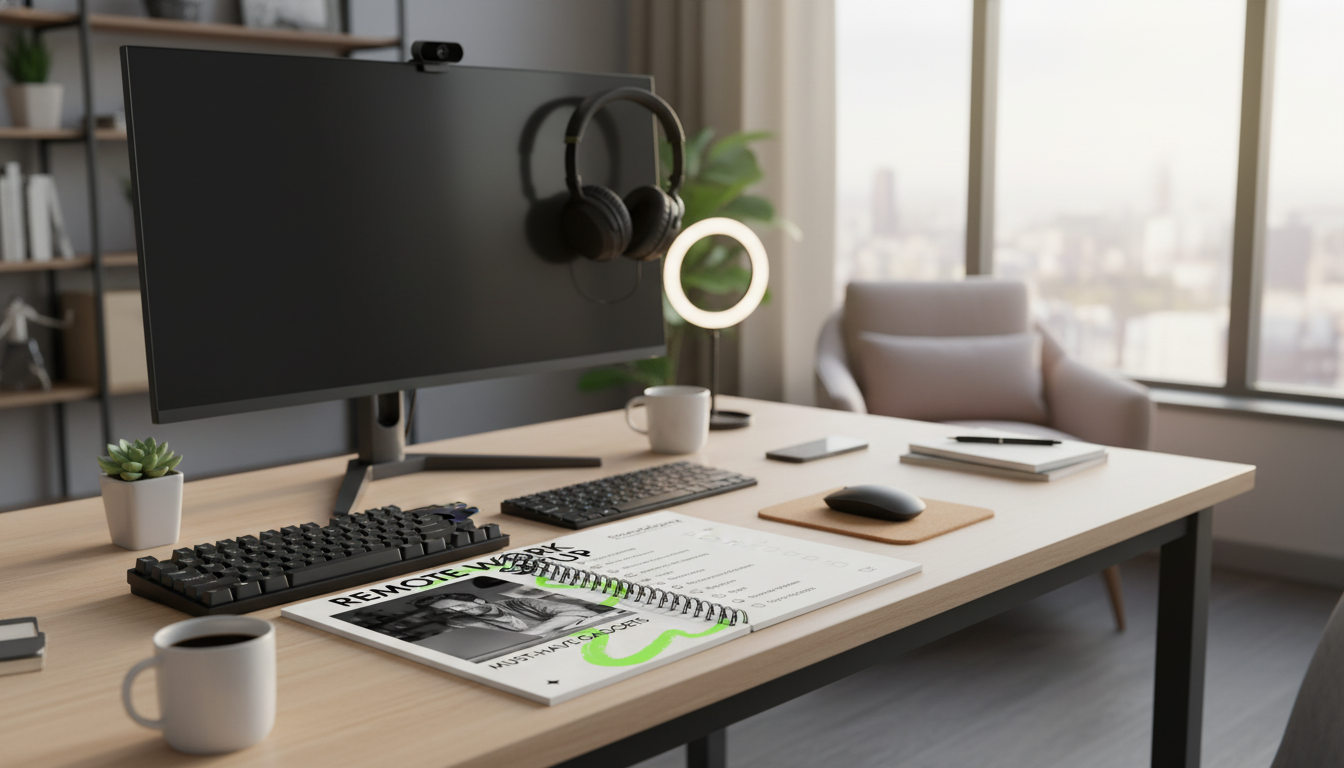
A solid remote-work setup is less about buying everything and more about removing friction: clearer calls, fewer cable hassles, stable power, and a workspace that stays comfortable for long stretches. This checklist breaks gadgets into tiers so it’s easy to prioritize what improves focus and reduces daily interruptions.
If your day is mostly email, web apps, and documents, a modern laptop with modest specs can feel perfectly fast. For design, video, development, or heavy multitasking, prioritize more RAM and storage so apps don’t stutter and files don’t bottleneck.
Before upgrading gear, make sure your connection isn’t the real culprit. Place your router centrally, avoid tucking it behind a TV or inside a cabinet, and consider a faster plan if video calls consistently drop. For roles where downtime isn’t an option, keep a mobile hotspot ready as a fallback.
Laptop-only can work for short sessions, but an external monitor often pays off quickly for sustained work—less squinting, fewer window swaps, and a more natural posture. If you’re adjusting a home workstation, the CDC’s NIOSH workstation guidance is a helpful reference for comfortable screen positioning and setup basics (NIOSH Computer Workstations eTool).
Wrist tension builds quietly. If typing is a big part of your day, a supportive keyboard and a mouse that fits your hand can reduce strain and make long days feel less punishing.
A small desk lamp or compact ring light reduces shadows and prevents that “dim webcam” look. Aim light toward your face (not behind you) and avoid harsh overhead glare when possible.
A quality headset or dedicated USB microphone helps colleagues hear you the first time—less repeating, less fatigue, and fewer awkward interruptions. If you frequently collaborate, prioritize audio clarity before chasing higher-resolution video.
In a noisy home, active noise-canceling headphones can be a lifesaver. In echo-prone rooms, simple additions like a rug, curtains, or a door draft stopper can reduce reverb and keep your voice sounding more natural.
If your built-in camera looks grainy in low light, a webcam upgrade can provide a sharper, more professional image. For instant improvement, place the camera at eye level using a small stand or a monitor mount so you’re not looking down at the lens.
| Situation | What helps most | Nice-to-have add-on |
|---|---|---|
| Frequent video calls | USB microphone or quality headset | Webcam with better low-light |
| Noisy home | Noise-canceling headphones | Simple sound dampening (rug/curtains) |
| Shared workspace | Headset with boom mic | Desk sign or indicator light for calls |
| Long meetings | Comfortable over-ear headset | Inline mute / call controls |
A USB‑C hub or docking station turns “connect everything” into a single cable moment. It’s especially useful if you move between rooms, plug into an external monitor, or rely on multiple peripherals daily.
Choose a surge protector with enough spaced outlets for bulky adapters, and consider one with USB ports for easy charging. In areas with flickery power, a UPS (battery backup) can prevent sudden shutdowns and reduce the risk of corrupted files.
Where supported, a hardware security key can strengthen logins beyond passwords alone. For practical, everyday steps that protect personal information, the FTC’s guidance is a solid baseline (FTC: How to Protect Your Personal Information).
Use an external drive or secure cloud backup routine to protect work if a device fails or gets lost. In shared offices or public-facing environments, lockable storage or a cable lock can add another layer of protection. For home network basics, CISA offers clear recommendations (CISA: Securing Your Home Network).
Must-Have Gadgets to Work From Home Checklist (digital download) helps you organize purchases by impact and keep your setup consistent across changing work demands.
For an additional practical upgrade to your routine, keeping meals simple can protect your focus during busy weeks. A structured food plan can reduce decision fatigue and keep breaks restorative rather than stressful: Healthy Meal Plan & Recipe Collection (digital download).
The essentials are a computer suited to your workload, stable internet, comfortable input devices, clear audio for calls, and basic lighting. Common next-step upgrades include an external monitor, a USB‑C hub/dock, and a UPS if your power is unreliable.
It’s most worth it when you frequently plug/unplug your laptop, use multiple peripherals, or run one or two external monitors. For lighter setups, a simple USB‑C hub may be enough—just confirm your laptop’s ports and supported display outputs.
Use a headset or USB microphone, add a small light aimed toward your face, and place the webcam at eye level. Soft furnishings (curtains, rugs) or simple noise reduction can also cut echo and improve perceived audio quality.









Leave a comment